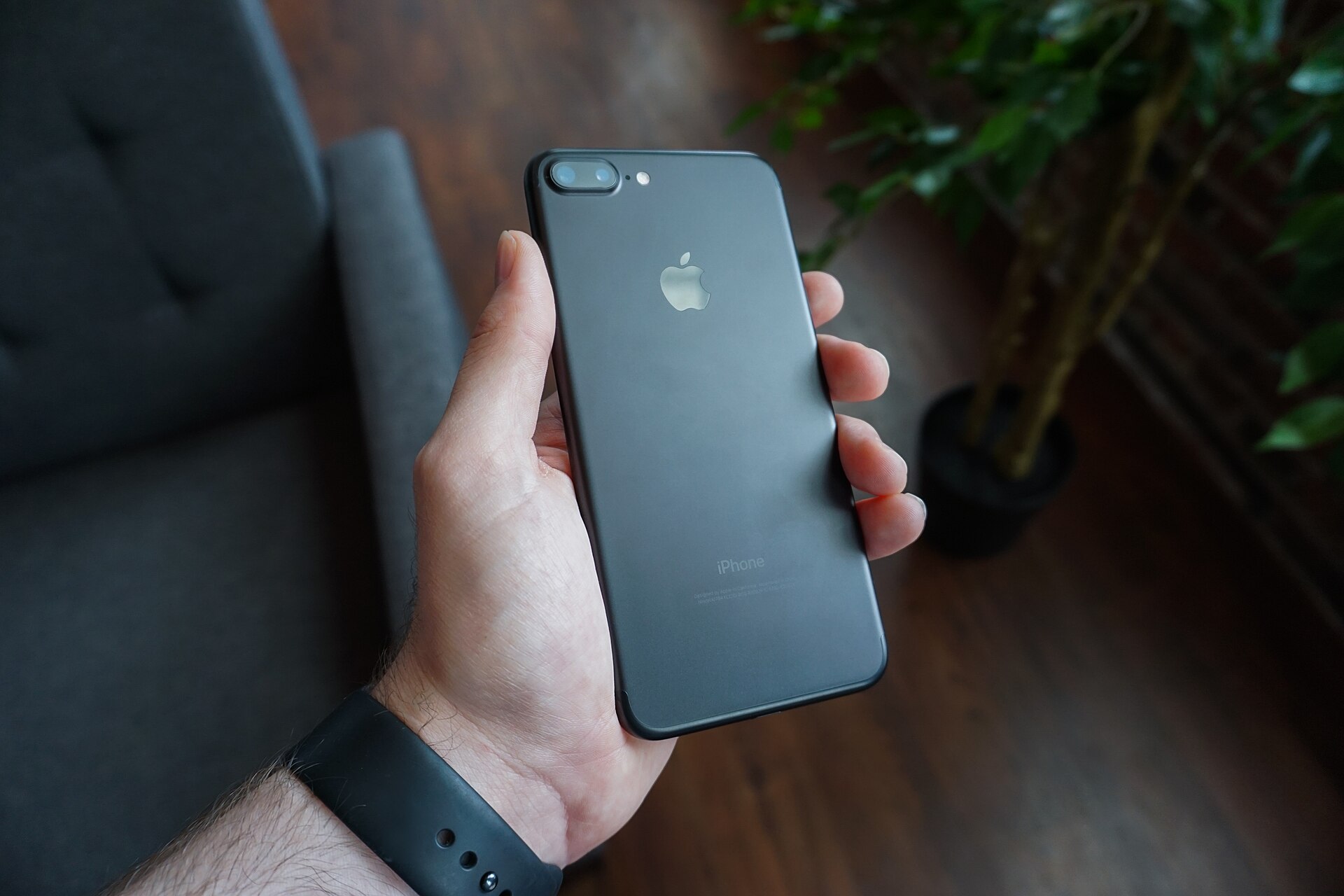
Your phone says storage is full — always at the worst moment, right before a birthday photo, a boarding-pass download, or an app update. The instinct is to start deleting photos. Resist it: photos are usually not the main problem, and deleting them is the one thing you cannot undo. The real hogs are videos you forgot about, app caches grown for months, downloaded files you never opened again, and messaging apps quietly saving every photo and video anyone ever sent you. This guide is drawn from the how-to guides linked at the end, not from hands-on testing of every phone model — menu names vary a little by phone and software version, but these are the standard steps on modern iPhones and Android phones.
On an iPhone, open Settings, then General, then iPhone Storage, and give the coloured bar a minute to calculate. On Android, open Settings, then Storage. You will see a breakdown — apps, photos, videos, messages, system data — with your biggest apps listed underneath. Do not delete anything yet: the breakdown tells you the truth in seconds, and it is often surprising — on many phones the photos are not even the biggest category. Google's Files app on Android shows the same breakdown and suggests files to remove.
One rule before anything else: deleting a photo from a synced phone usually deletes it everywhere. With iCloud Photos or Google Photos, phone and cloud are kept as a matching pair — remove a picture from the phone and it disappears from the cloud too. So first, make sure every photo you love exists in a second place. On iPhone, go to Settings, tap your name, then iCloud, then Photos, switch on iCloud Photos, and once backup is complete choose “Optimise iPhone Storage”, which keeps small previews on the phone and full-size originals in iCloud. On Android, open Google Photos, tap your profile picture, check backup is on and says “Backup complete”, then tap “Free up space”, which removes local copies of photos already backed up. Wait until backup actually finishes — if it is still uploading, the phone cannot free anything yet. Only then let the phone shrink your library; your photos stay safe, and only the local copies go.
Big games and photo or video editing apps can take several gigabytes each — and you do not have to delete them for good. On iPhone, go to Settings, then General, then iPhone Storage, tap an app you rarely use, and choose “Offload App”: the app itself is removed but its documents and data stay, so reinstalling later picks up exactly where you left off. You can also switch on “Offload Unused Apps” and let the phone do this automatically. On Android, open Settings, then Apps, sort by size or last used, and uninstall the ones you do not need — or use the Play Store's archiving, which removes the app but keeps its icon and data, so tapping the icon brings it back. A good rule of thumb from the guides: if you have not opened an app in 90 days, you do not need it installed.
A cache is temporary data an app stores so it loads faster next time: thumbnails, preview images, recently viewed pages. Clearing it never deletes your account, photos, or messages. On Android, open Settings, then Apps, pick a heavy app, tap Storage, and choose “Clear cache” — browsers, social apps, and shopping apps are usually the worst offenders. Two warnings: right next to “Clear cache” sits “Clear storage”, which wipes the app's saved data, settings, and sign-ins — tap “Clear cache” only. And expect a modest gain, with the cache growing back as you use the app. On iPhone there is no system-wide clear-cache button, so offload and reinstall the worst app instead, or clear its cache inside the app's own settings if it offers one. Then check WhatsApp, the quietest storage hog of all: open WhatsApp, go to Settings, then Storage and data, then Manage storage, where you will probably find gigabytes of forwarded videos and group-chat media. Delete the big files you do not need, and turn off auto-download for videos in group chats so it does not fill up again.
Open your Files app and check the Downloads folder: installers, old documents, PDFs, videos you saved once and forgot. Clear it. Then check for duplicates and accidental bursts — the same sunset, taken twelve times. Delete eleven. Finally, some perspective on what “full” means. The Apollo Guidance Computer that landed Apollo 11 on the Moon had about 4 kilobytes of working memory and roughly 72 kilobytes of program storage — its software literally woven by hand, copper wire threaded through tiny magnetic cores — and during the descent it flashed a 1202 overload alarm five times, shed its low-priority jobs, and kept flying anyway. Your phone holds tens of thousands of times more storage than the machine that flew to the Moon — and it is still full. The difference is not the hardware. Nobody ever cleaned it out. Put the same discipline into the rest of your phone's upkeep: if your battery is the next thing complaining, see how to charge your phone so the battery lasts for years, and if you have never checked whether your passwords have leaked, here is how to check.
Set aside fifteen minutes, work through the steps in order — check the breakdown, back up, offload, clear caches, tame WhatsApp — and look at the storage screen again. Most people win back several gigabytes without losing a single photo they care about. Once a month, a two-minute glance at the same screen keeps it from filling up again.
Related on Poptani Labs: How to charge your phone so the battery lasts for years, Is your password already public? How to check — and what to do next, Are VPNs worth it? What they actually do — and what they don't. More in this category: The Practical Lab.
Sources: How to Free Up Phone Storage Without Deleting Photos (FreeFast), How to free up phone storage without deleting photos (TechCity), How to Free Up Space on Your Phone Without Deleting Photos (Unstuck Guide), A Brief Analysis of the Apollo Guidance Computer (arXiv)

